

Read your weekly report and practice report
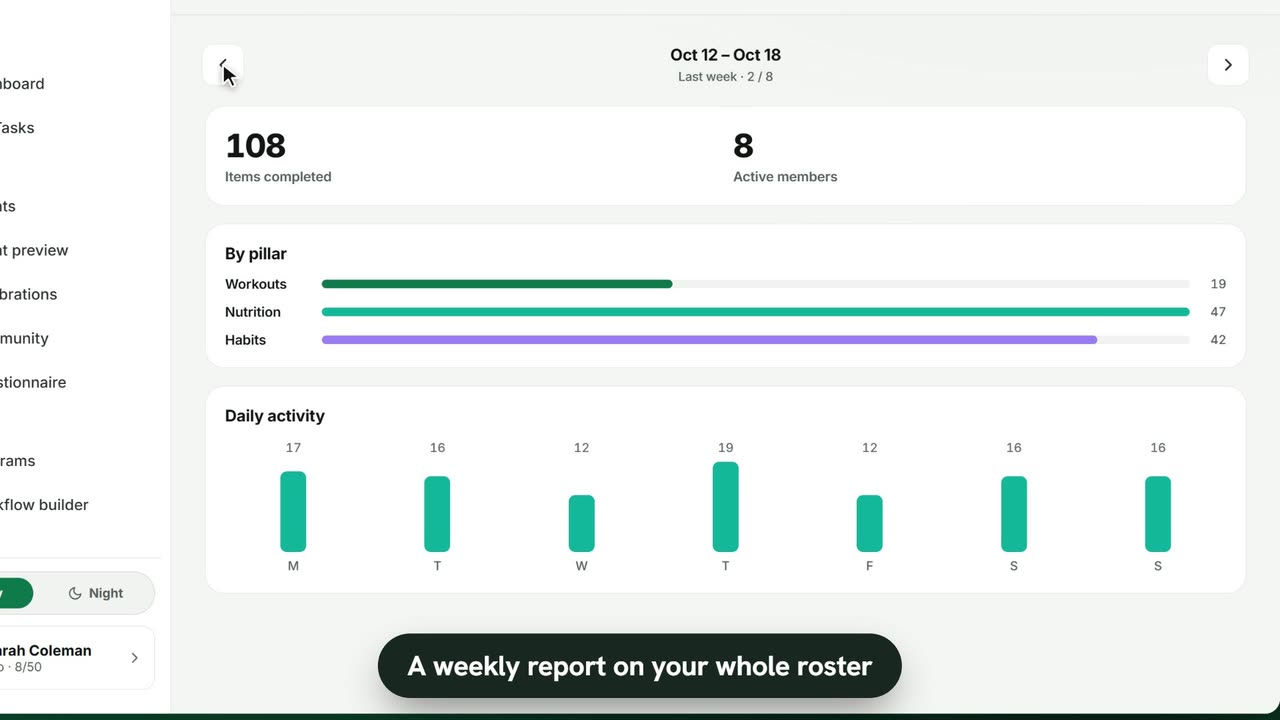
Sample data. The coach and clients shown are fictional.
Who can use it
- Available on every plan, including Free.
- Your 7-day free trial includes every feature, for up to 3 clients.
- The Free plan covers up to 3 clients. Pro, Max and Ultra add the premium features and raise the client limit. Compare plans.
1. Your dashboard
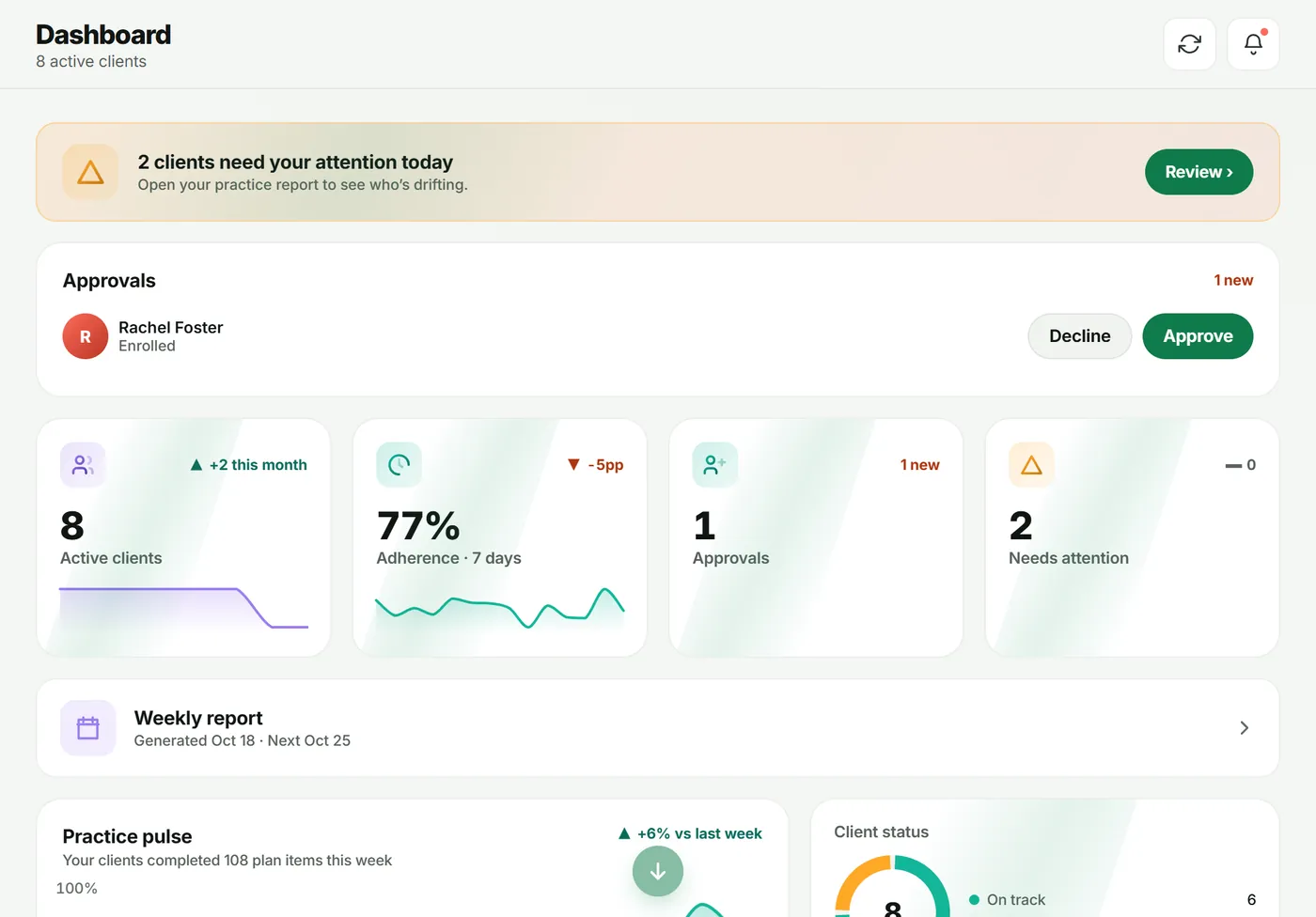
The Dashboard sums up the week: active clients, Adherence · 7 days, Approvals, Needs attention, Practice pulse and Client status. A banner tells you how many clients need your attention today.
2. The weekly report
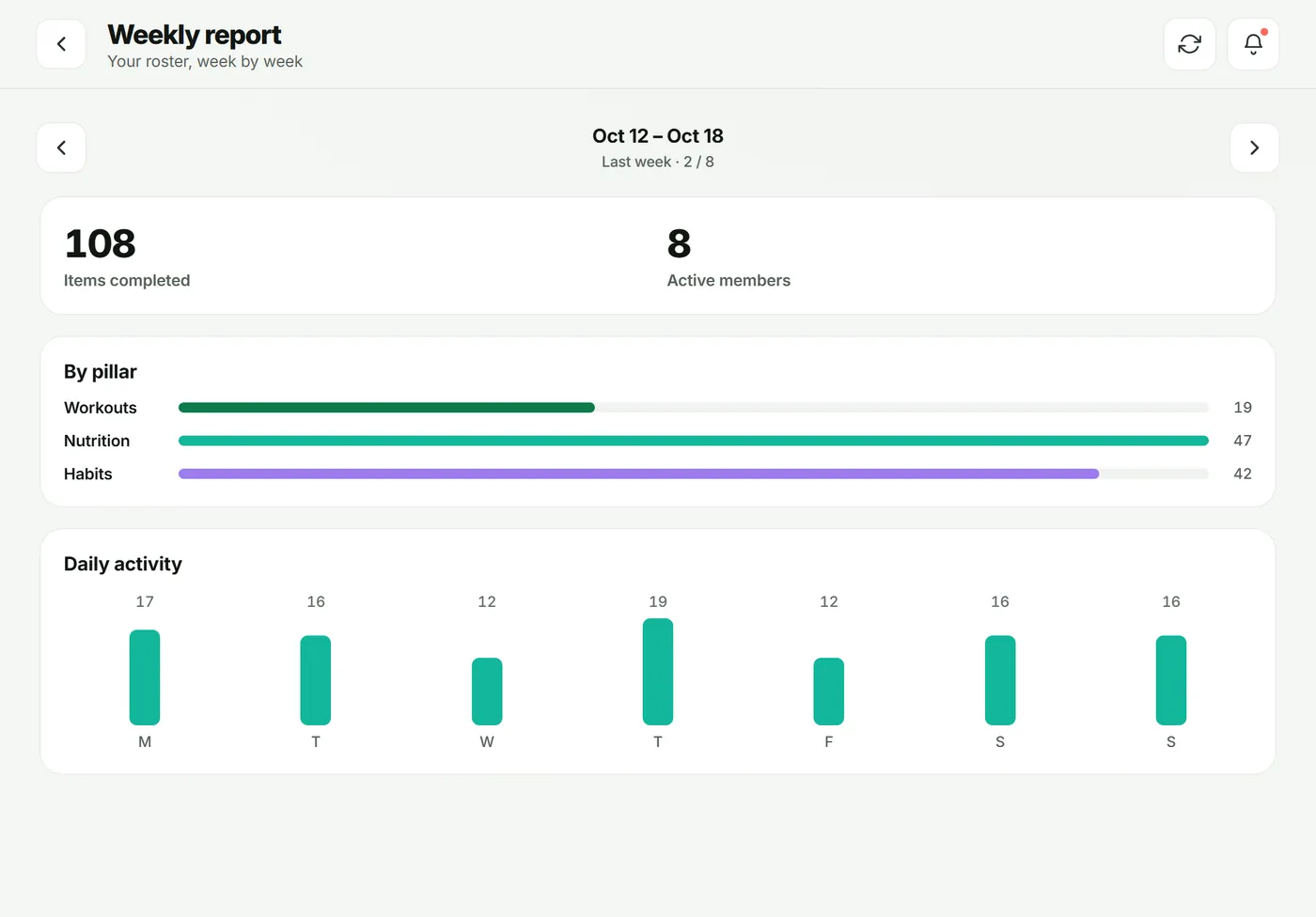
Tap Weekly report on the dashboard. For each week you see:
- Items completed and Active members;
- By pillar — workouts, nutrition and habits;
- Daily activity — Monday to Sunday.
Use Previous week and Next week to compare.
3. The practice report
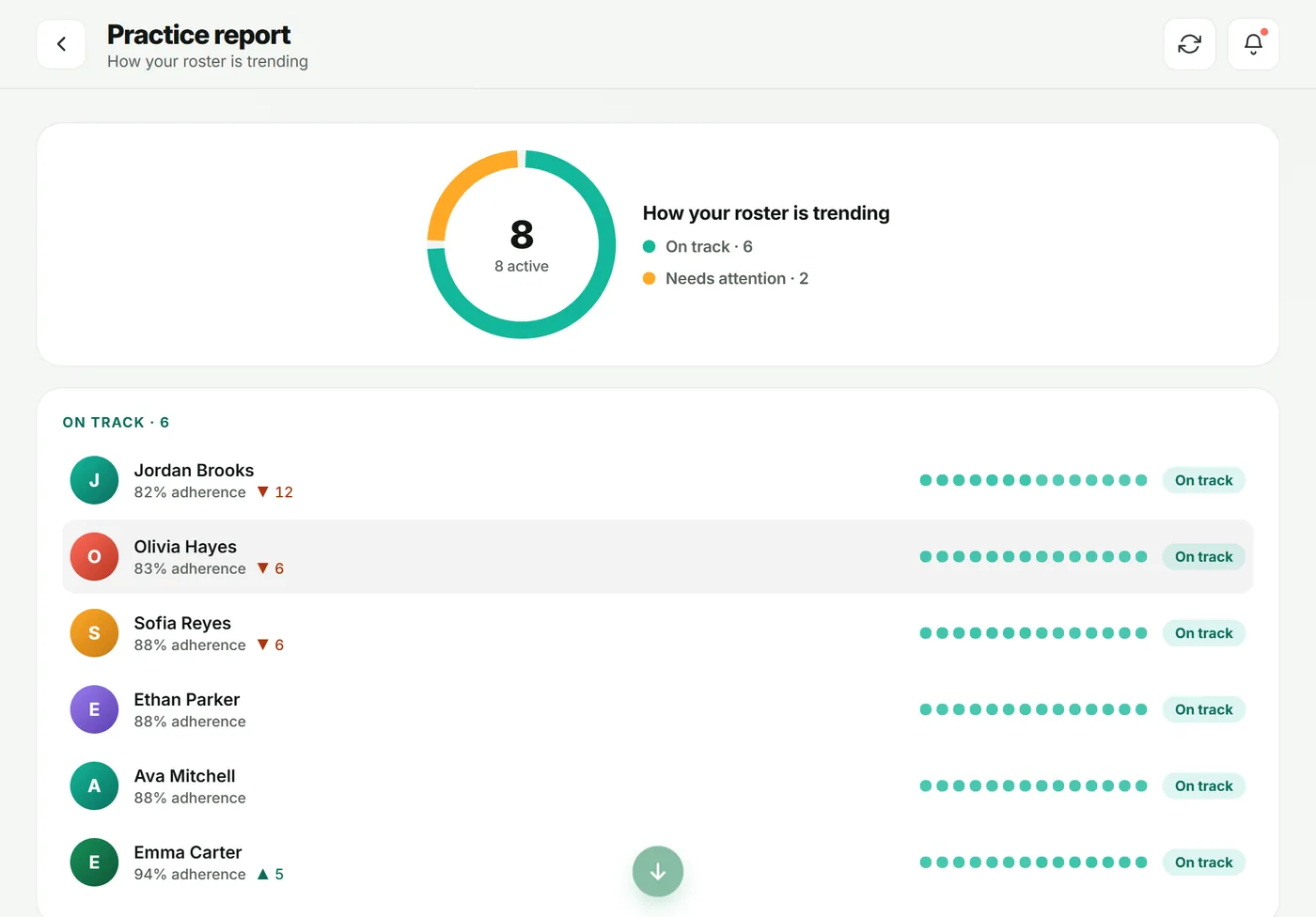
Tap the Adherence · 7 days tile or Client status on the dashboard. The practice report shows how your roster is trending and lists clients by status — on track and needs attention — each with their adherence.
Troubleshooting
- This week is empty. It isn’t finished yet — the report is generated after the week wraps.
- A client is missing. Only active clients with a plan are counted.
Frequently asked questions
When is the weekly report ready?
Each week’s report finalises once the week ends, ready on Monday morning. The current week shows as “Yet to be generated”.
What counts as an item completed?
A planned workout, meal plan or habit that a client fully completed.
Can clients see these reports?
No. Reports are for you. Clients see their own progress in their app.
Try it in your own workspace
Start your free trial