

Share guides, files and links
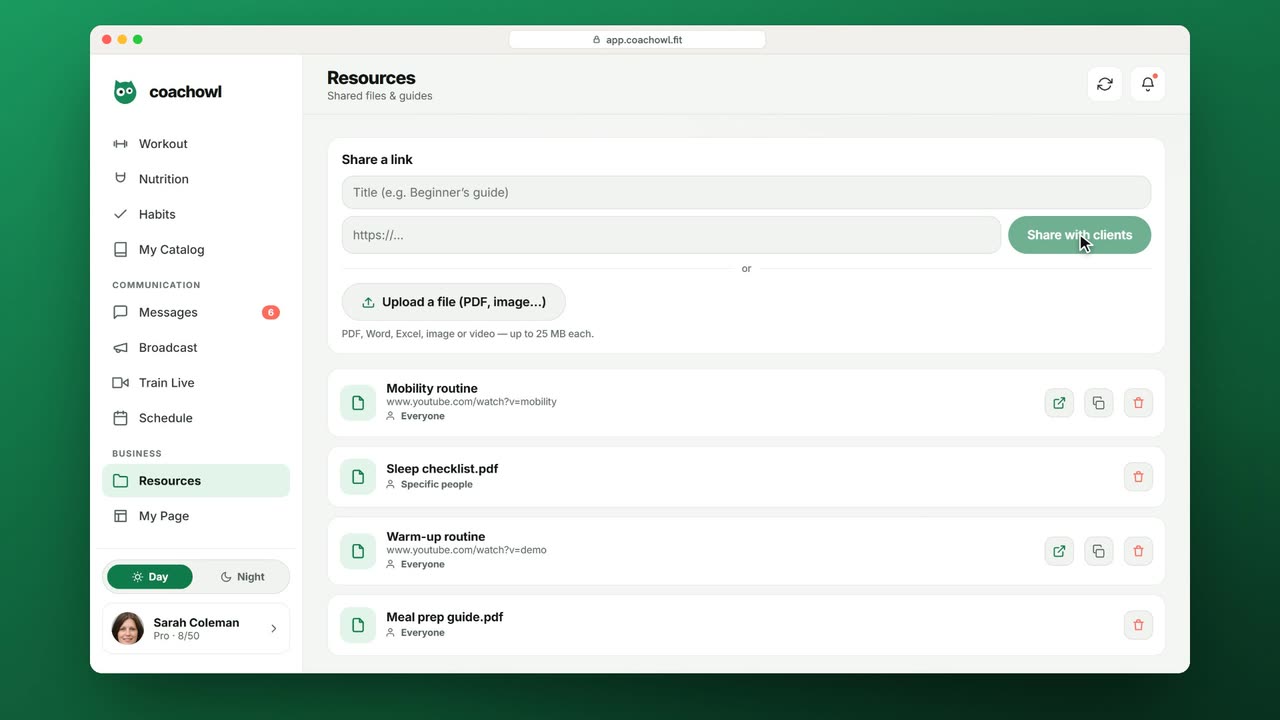
Sample data. The coach and clients shown are fictional.
Who can use it
- Available on every plan, including Free.
- Your 7-day free trial includes every feature, for up to 3 clients.
- The Free plan covers up to 3 clients. Pro, Max and Ultra add the premium features and raise the client limit. Compare plans.
1. Share a link
- Open Resources in the sidebar.
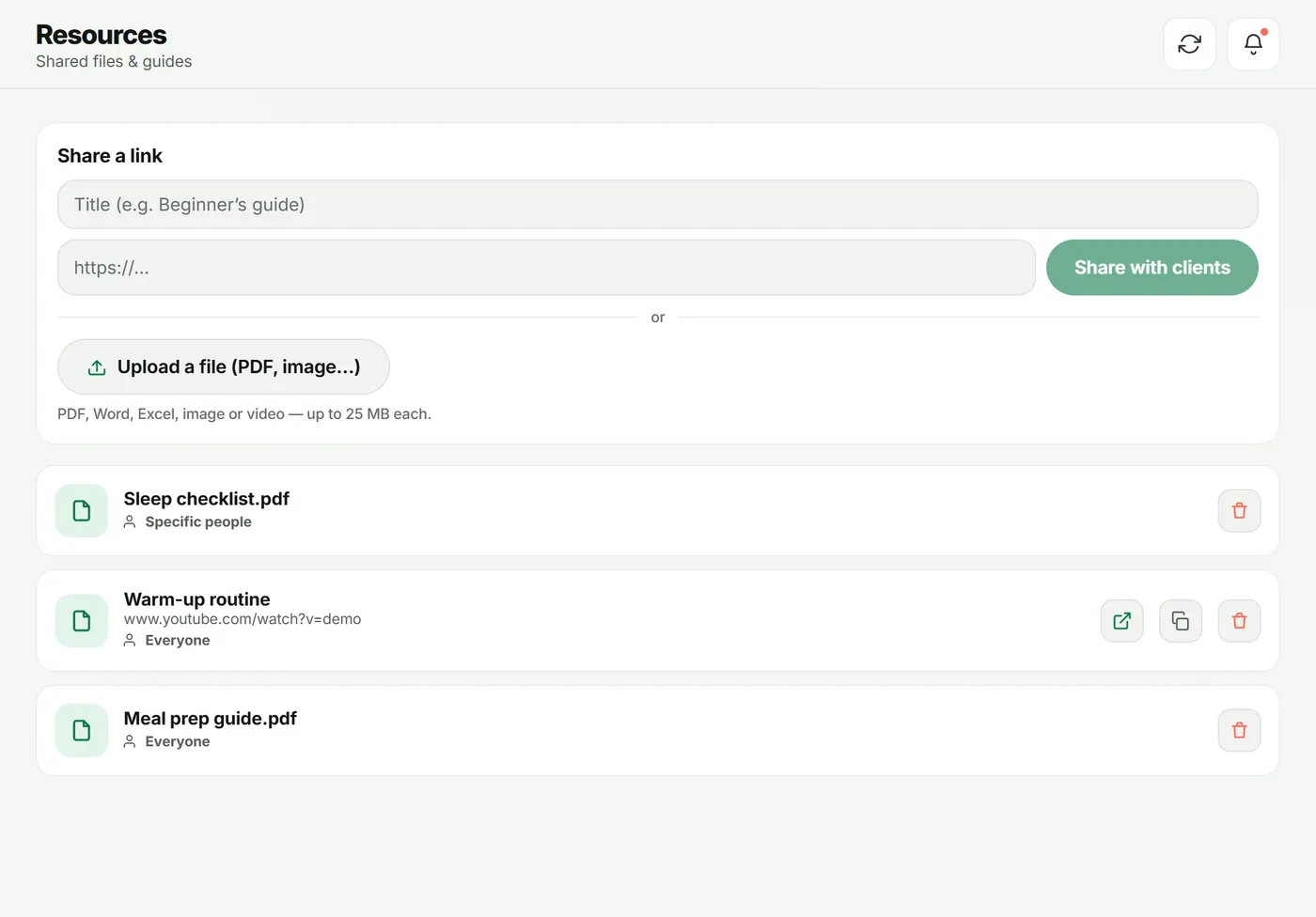
- Under Share a link, add a title (for example “Warm-up routine”) and the https://… address.
- Tap Share with clients.
2. Upload a file
Tap Upload a file (PDF, image…) and choose a file. Allowed: PDF, Word, Excel, image or video — up to 25 MB each.
3. Choose who can see it
Each resource shows who it is shared with: Everyone or Specific people. Tap it and choose Change who can see this:
- Everyone — all your active clients, including new ones.
- Specific people — only the clients and groups you pick (groups are on Pro and above).
Tap Save.
What your client sees
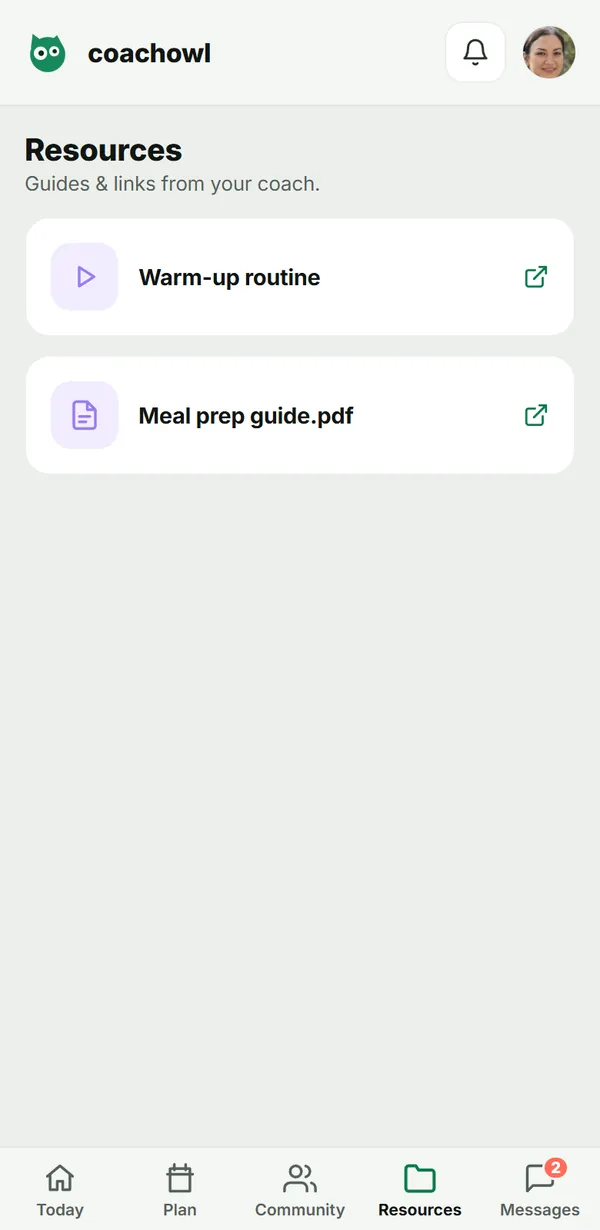
Clients have a Resources tab listing everything you have shared with them. They tap to open a link or a file.
Troubleshooting
- “Only PDF, Word, Excel, image and video files can be uploaded.” Convert the file or share it as a link.
- “Storage full for your plan”. Delete a file you no longer need, or upgrade.
- A client can’t see a file. Check its sharing — it may be set to specific people.
Frequently asked questions
Which files can I upload?
PDF, Word, Excel, image and video files, up to 25 MB each.
Is there a storage limit?
Yes. You and your clients share one storage budget that grows with your plan. If it fills up, delete a file or upgrade.
Do new clients see resources I shared earlier?
Yes, if it is shared with Everyone — that includes clients who join later.
Try it in your own workspace
Start your free trial