

Send a weekly check-in and read the answers
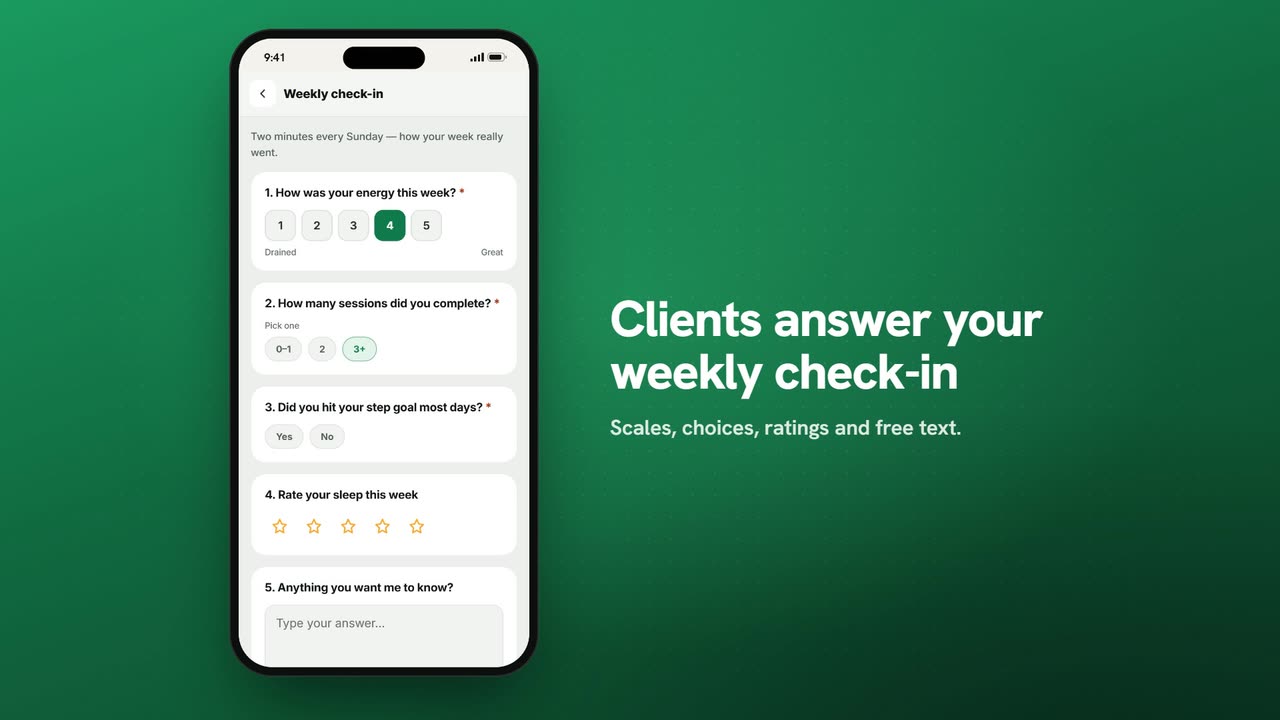
Sample data. The coach and clients shown are fictional.
Who can use it
- Available on Pro and above (and during your 7-day free trial).
- Your 7-day free trial includes every feature, for up to 3 clients.
- The Free plan covers up to 3 clients. Pro, Max and Ultra add the premium features and raise the client limit. Compare plans.
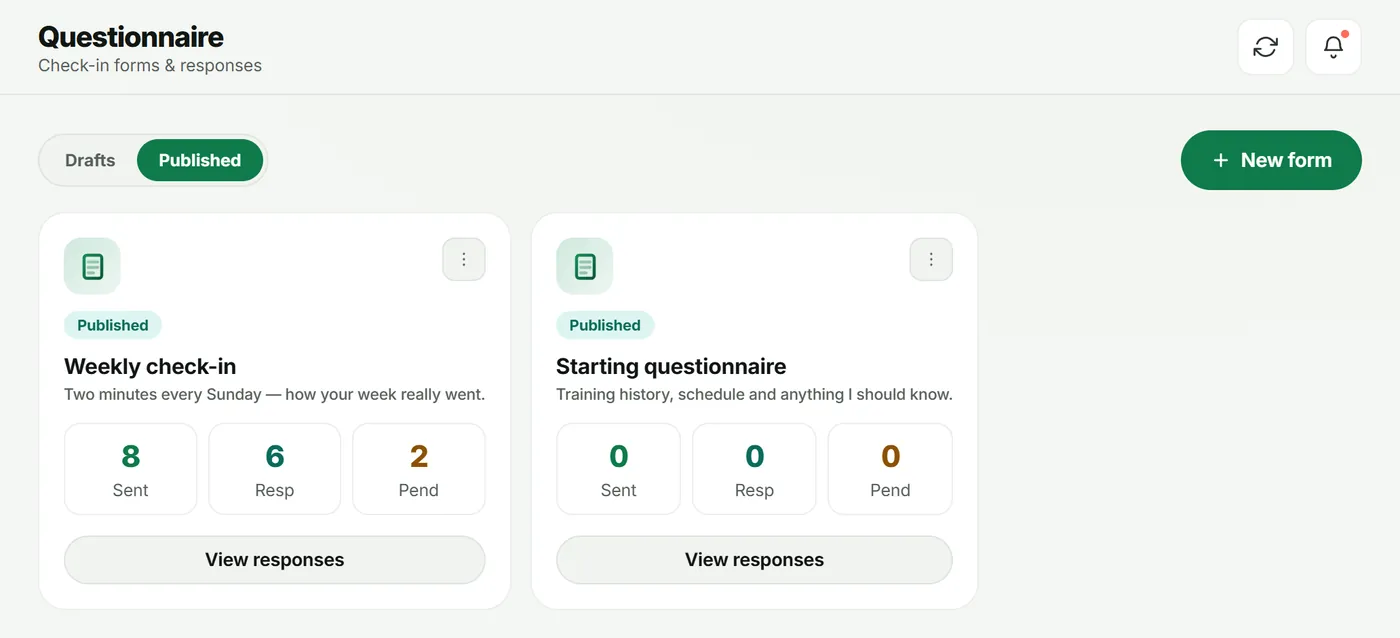
In CoachOwl, check-ins are forms you build once and send to any client or group. You'll find them under Questionnaire in the sidebar.
1. Create the form
- Open Questionnaire and tap New form.
- Enter a Form title (for example “Weekly check-in”) and an optional Description, then tap Create & build.
2. Add questions
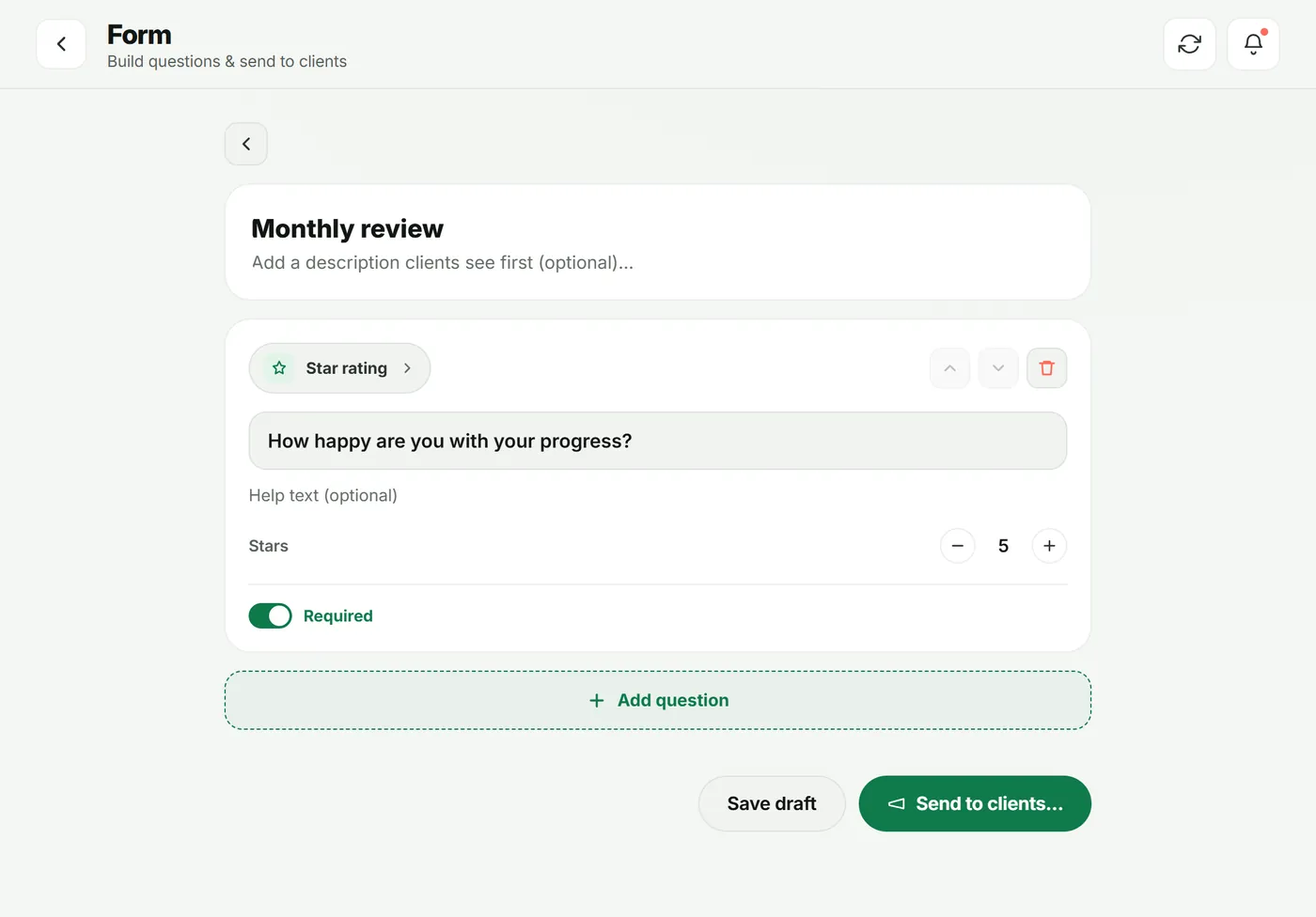
- Tap Add question and pick a Question type.
- Type the question, add Help text (optional), and switch Required on or off.
- For a Linear scale, set Min, Max and the Low label / High label (for example “Drained” to “Great”).
- Tap Save draft as you go.
3. Send it
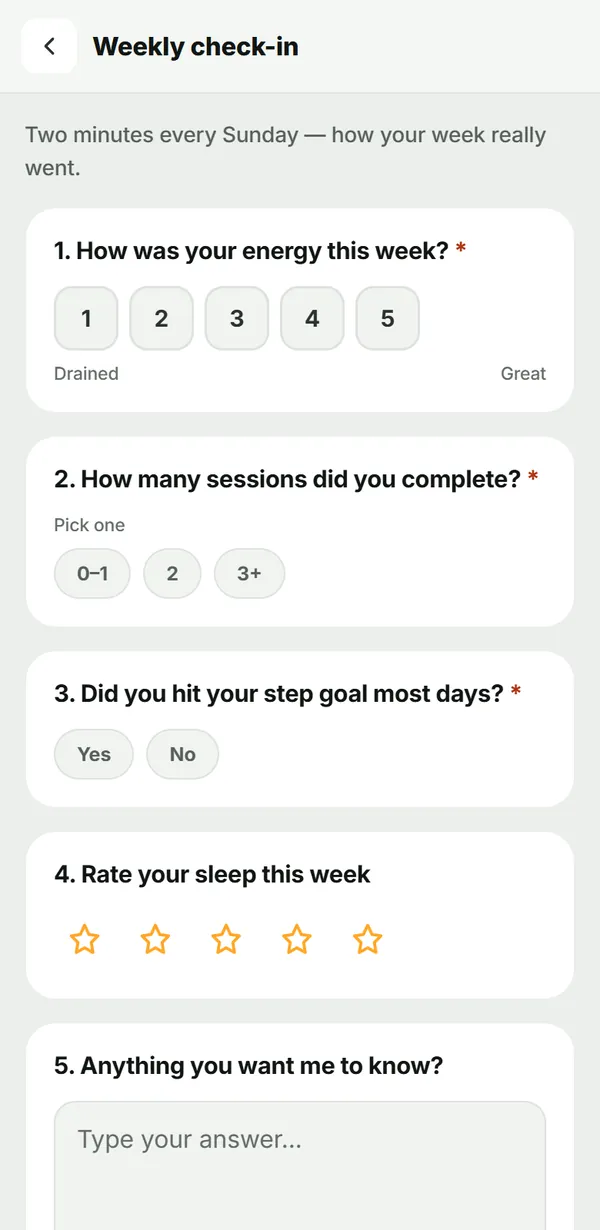
Tap Send to clients…, pick clients or groups, and send. Each client sees a Check-ins due card on their Today screen.
4. Your client answers
The client taps the card, answers each question and taps Submit.
5. Read the results
Back in Questionnaire, open Published and tap View responses.
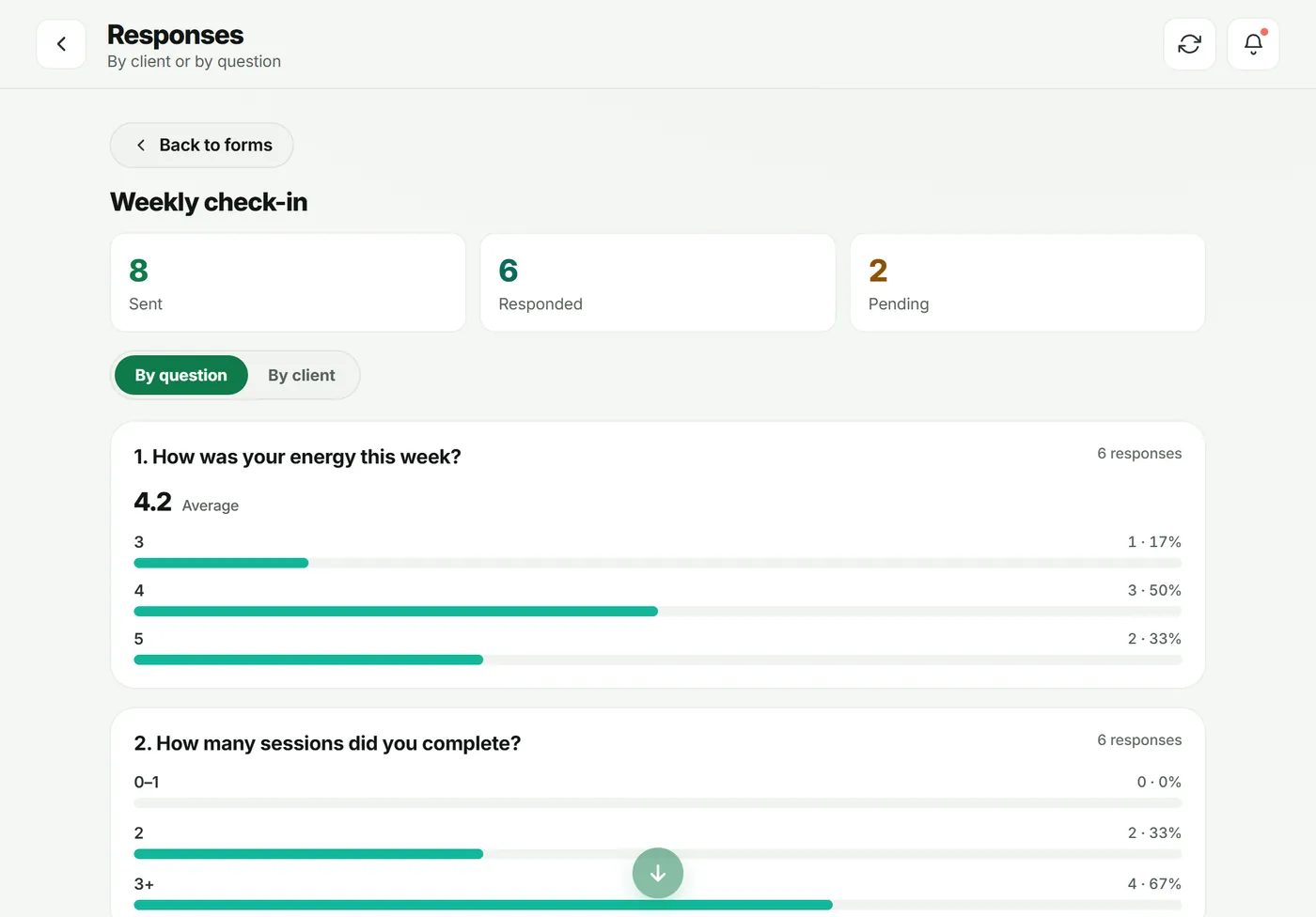
- By question shows averages and counts for each question, and every written answer.
- By client shows one person’s answers at a time, with a Message shortcut.
From a response you can also Create task to follow up later.
Troubleshooting
- The client doesn’t see the check-in. They must be an active client. Pending requests can’t receive forms.
- I can’t change a question. The form is published. Use Form actions → Duplicate and edit the copy.
- The Questionnaire screen shows an upgrade card. Check-ins are on Pro and above.
Frequently asked questions
Which question types can I use?
Short answer, Paragraph, Single choice, Multiple choice, Yes / No, Number, Linear scale, Star rating and Date.
Can I edit a form after sending it?
Published forms are locked so answers stay comparable. Use Duplicate to edit — you get a copy in Drafts.
Can I send a check-in automatically every week?
Yes, with an automation: add an “Assign a form” step to a workflow, for example when a workout is completed. See the automations tutorial.
Try it in your own workspace
Start your free trial