

Add and manage your clients
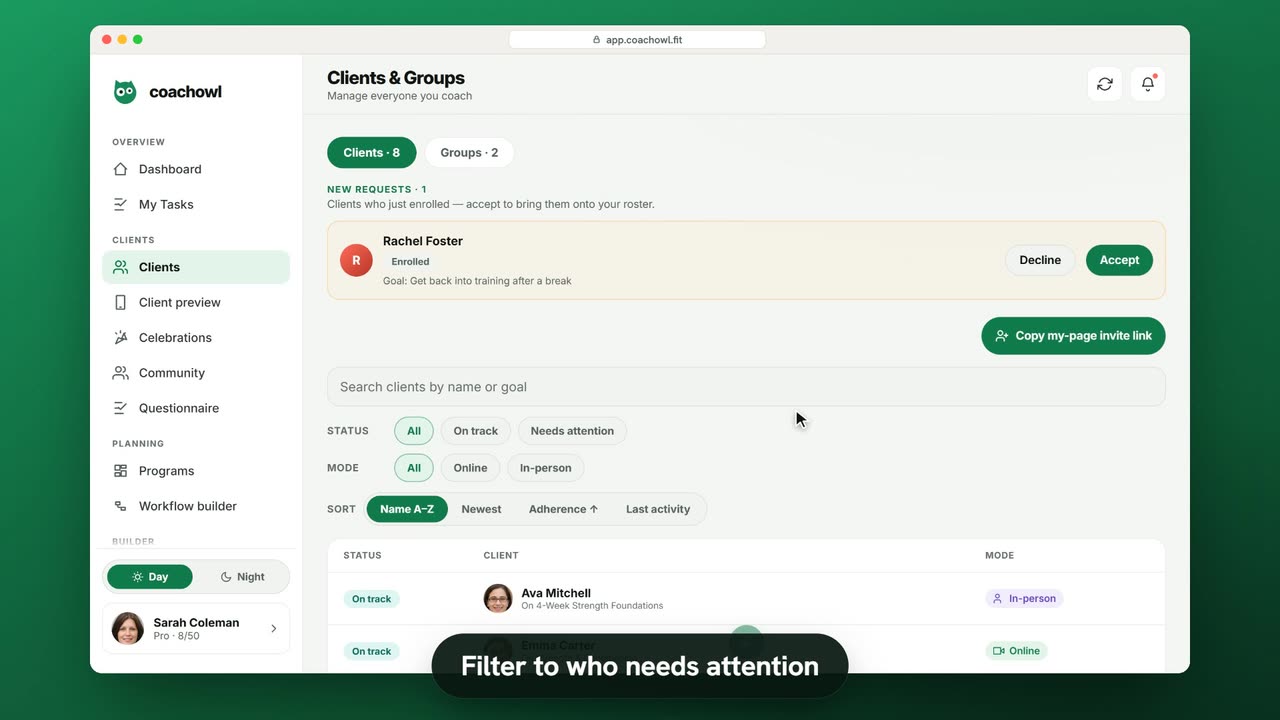
Sample data. The coach and clients shown are fictional.
Who can use it
- Available on every plan, including Free.
- Your 7-day free trial includes every feature, for up to 3 clients.
- The Free plan covers up to 3 clients. Pro, Max and Ultra add the premium features and raise the client limit. Compare plans.
Every client you coach lives on one screen: Clients. New requests appear at the top, your active roster below, and each client opens into a hub with their plan, goals and history.
1. Share your invite link
Clients join you, not the other way round — that way each client accepts the Terms of Service and Privacy Policy in their own name.
- Open Clients in the sidebar.
- Tap Copy my-page invite link and send it by text, email or social.
The link opens sign-up already connected to you. If you see “Set a @handle first”, claim your handle in Profile → Edit profile first.
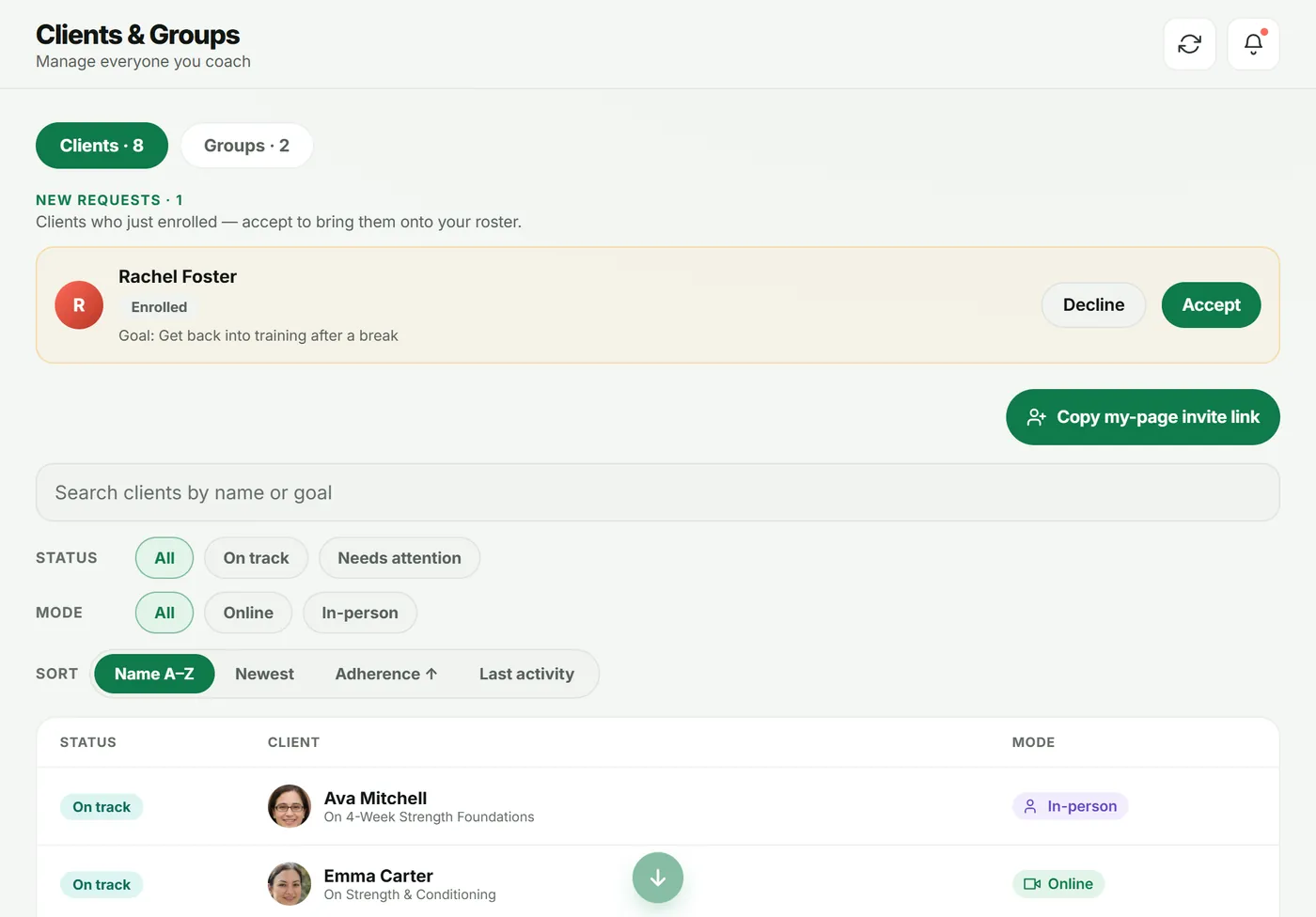
2. Accept, then activate a new request
When someone signs up from your link, they appear under New requests (and in Approvals on your Dashboard).
- Tap View details to read their goal and whether they finished onboarding.
- Tap Accept, then Accept request. They join your roster and your “on accept” automation runs.
- When you are ready to start coaching, tap Activate, then Activate client. This starts their plan in the app and opens their logs to you.
Not the right fit? Tap Decline → Decline request. Their slot is freed and they can request again later.
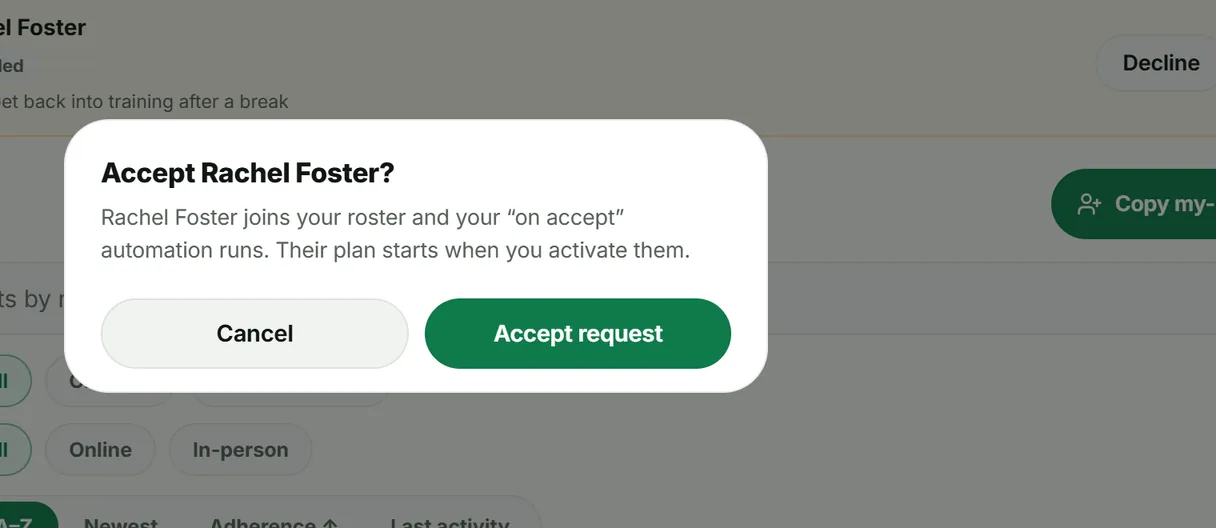
3. Find a client
Above your roster:
- Search clients by name or goal.
- Status: All, Needs attention, On track, At risk, Off track or No plan.
- Mode: All, Online or In-person.
- Sort: Name A–Z, Newest, Adherence ↑ or Last activity.
“Needs attention” shows who has slipped this week.
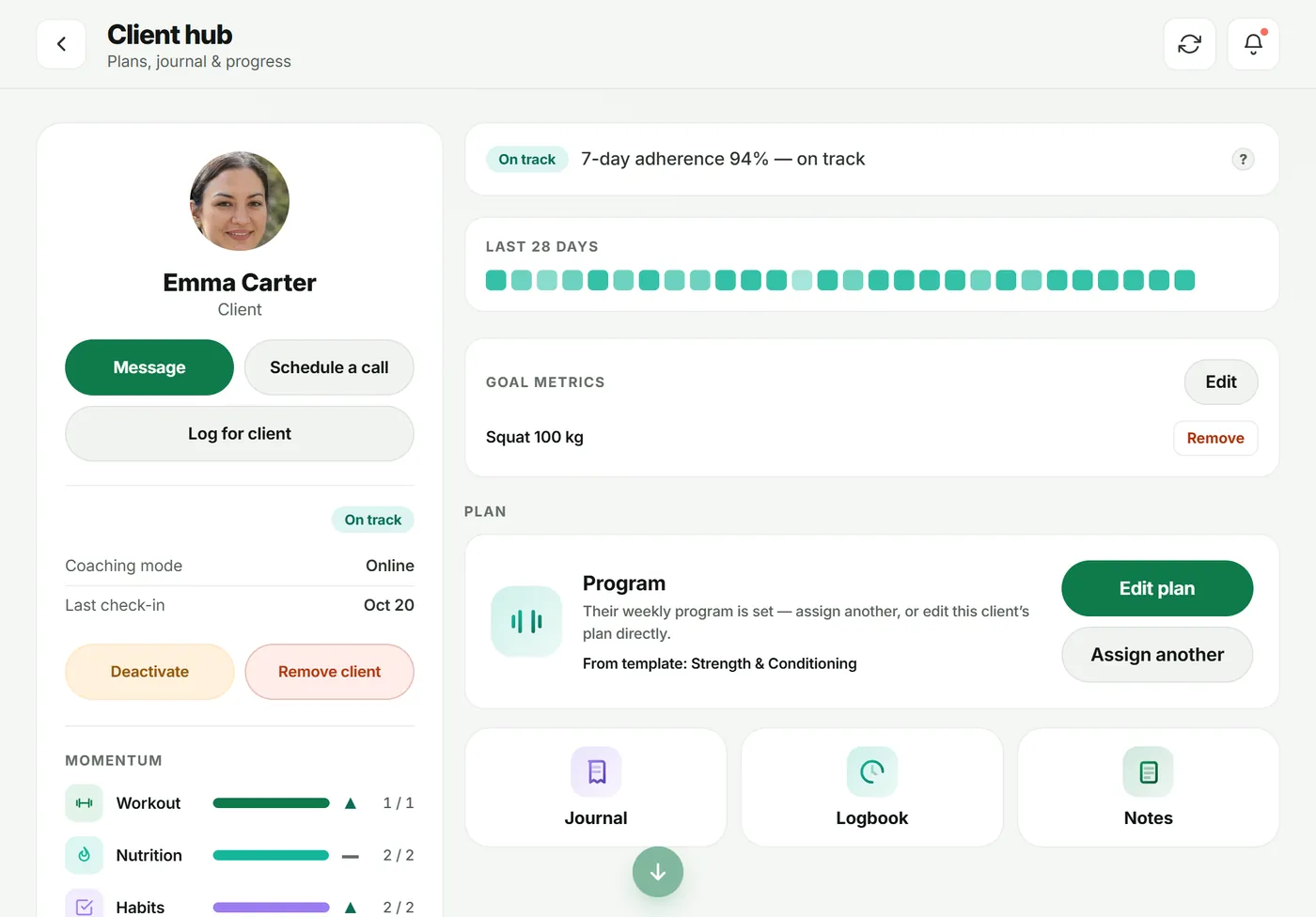
4. Open the client hub
Tap a client to open their Client hub. From here you can:
- Message them, or Schedule a call (scheduling is on Pro and above).
- Log for client when they tell you what they did.
- Check their 7-day adherence, the Last 28 days strip and Goal metrics.
- Open their Plan (Edit plan or Assign another), Journal, Logbook and Notes.
- Deactivate a client to pause them, or Remove client when you stop working together.
Troubleshooting
- My link says the coach can’t be found. Your page must be published: open My Page and check it shows Live.
- A client signed up but isn’t listed. They appear under New requests until you accept them, not in the main roster.
- I can’t activate anyone. You are at your plan’s client limit. Remove a client or upgrade.
Frequently asked questions
Can I add a client myself instead of waiting for them to sign up?
Clients create their own account from your public page or invite link, so they accept the Terms of Service and Privacy Policy themselves. Share the link from Clients → “Copy my-page invite link”.
What is the difference between Accept and Activate?
Accept puts the client on your roster and runs your “on accept” automation. Activate starts their plan in the app and opens their logs to you. Many coaches accept straight away and activate once the client is ready to start.
Does CoachOwl take payments from my clients?
No. Money between you and your clients never goes through CoachOwl. Take payment however you already do, then activate the client when you are ready.
What happens when I hit my client limit?
New sign-ups stop and the Clients screen shows “You’re at your client limit”. Your existing clients are safe — upgrade or remove a client to add more.
Try it in your own workspace
Start your free trial