

Schedule a coaching call
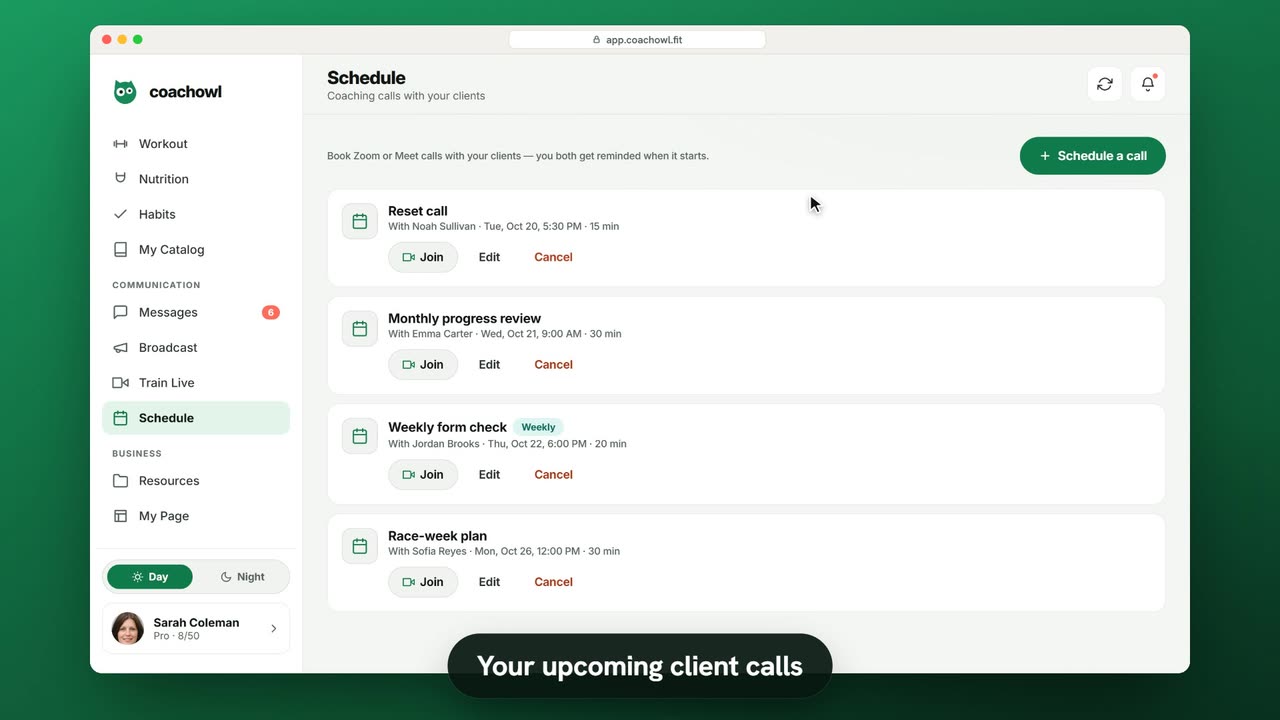
Sample data. The coach and clients shown are fictional.
Who can use it
- Available on Pro and above (and during your 7-day free trial).
- Your 7-day free trial includes every feature, for up to 3 clients.
- The Free plan covers up to 3 clients. Pro, Max and Ultra add the premium features and raise the client limit. Compare plans.
1. Book a call
- Open Schedule in the sidebar.
- Tap Schedule a call.
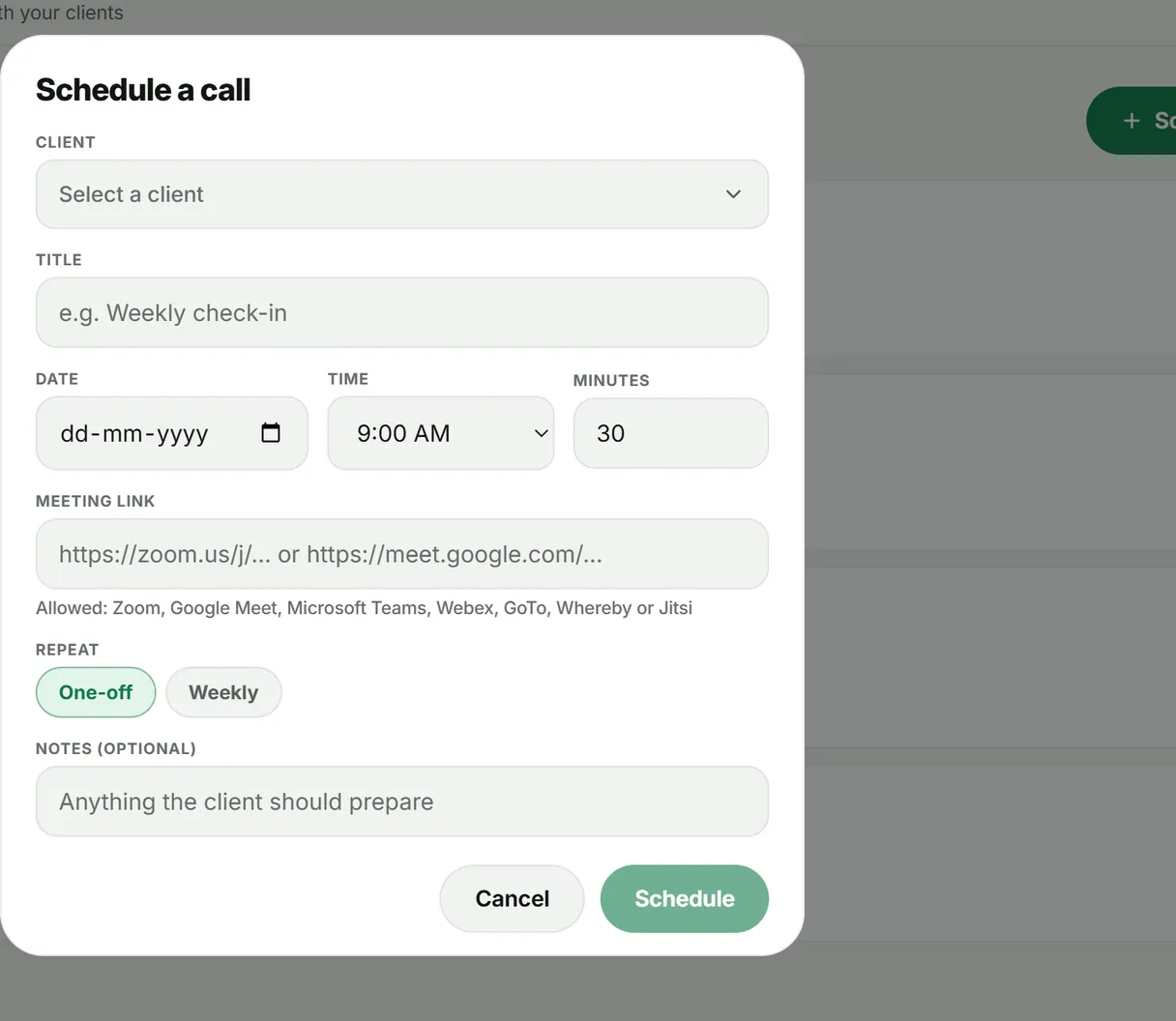
- Select a client, add a Title (for example “Monthly progress review”), the Date, Time and Minutes.
- Paste your Meeting link.
- Choose One-off or Weekly, add an optional note for the client, and tap Schedule.
You can also start from a client’s hub with Schedule a call.
2. Manage your calls
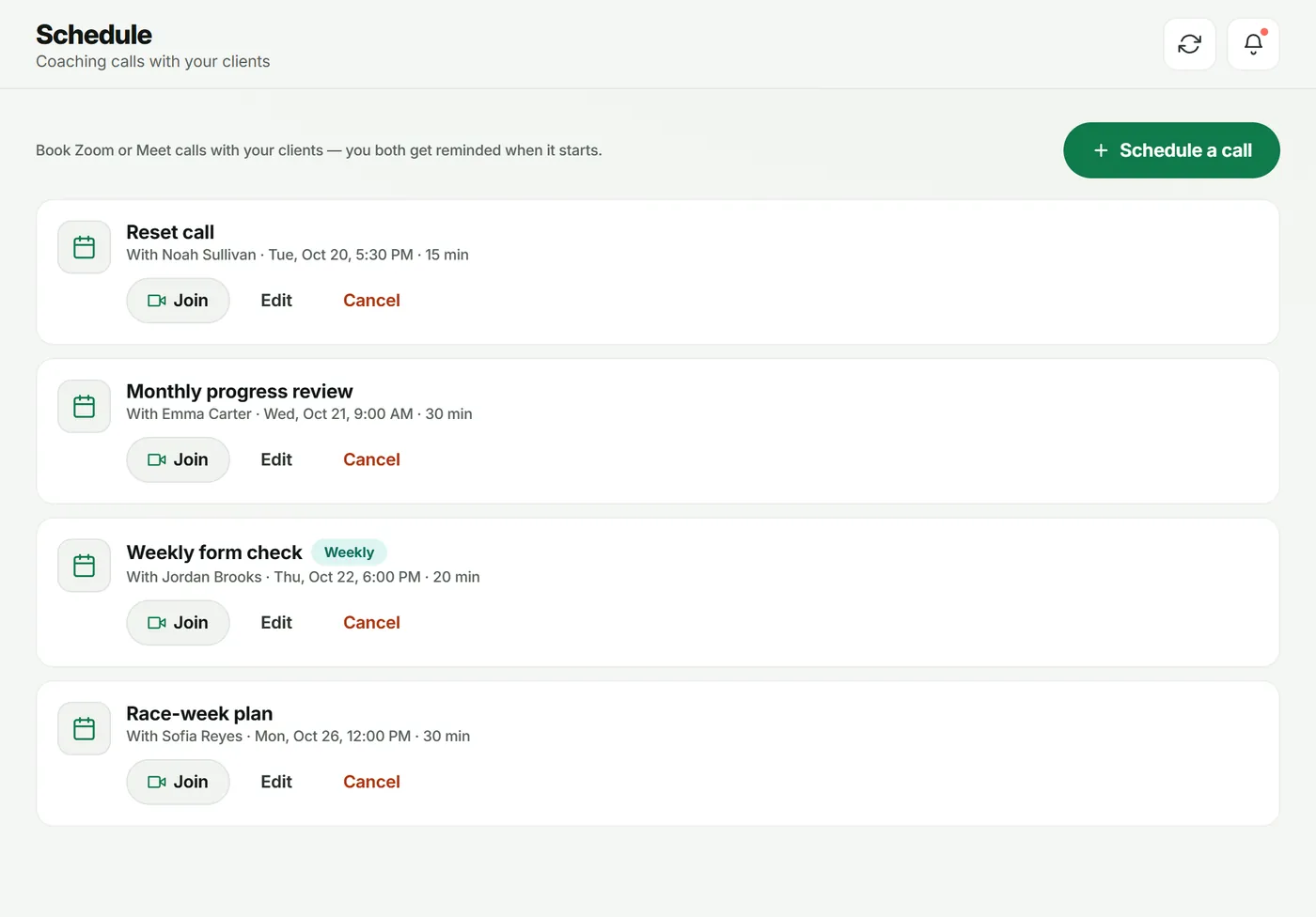
Your upcoming calls are listed on Schedule, each with Join, Edit and Cancel. Weekly calls carry a Weekly badge.
What your client sees
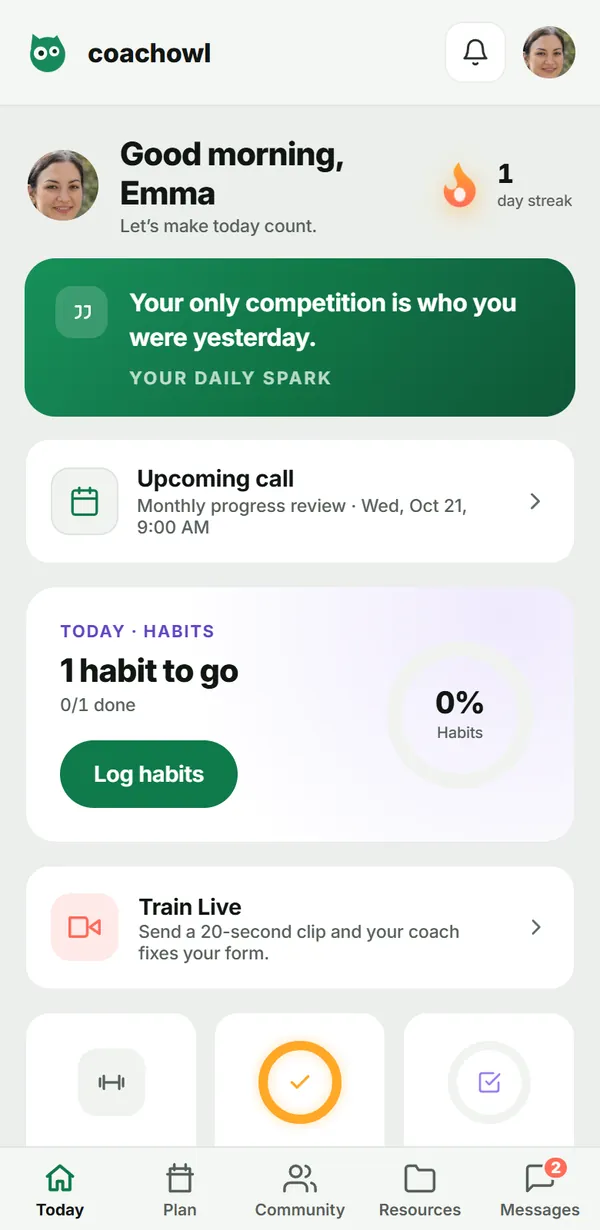
The next call shows as Upcoming call on the client’s Today screen, and both of you are reminded when it starts.
Troubleshooting
- The link is refused. Use a link from one of the supported video tools listed above.
- Schedule is greyed out. Fill in the client, title, date and link first.
Frequently asked questions
Which video tools can I use?
Zoom, Google Meet, Microsoft Teams, Webex, GoTo, Whereby or Jitsi. Paste the meeting link when you book.
Does CoachOwl host the call?
No. The call happens in your video tool; CoachOwl keeps the booking, shows a Join button and sends the reminders.
Can I book a repeating call?
Yes. Set Repeat to Weekly.
Try it in your own workspace
Start your free trial