

Automate onboarding with a workflow
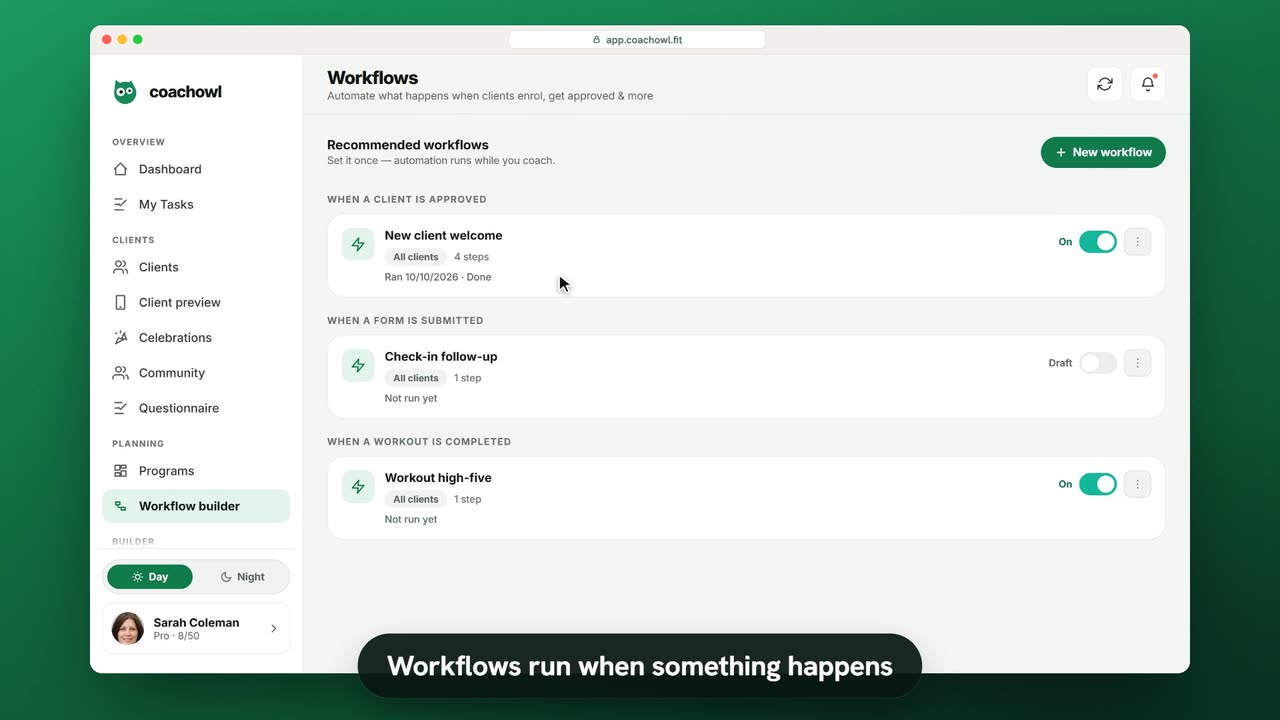
Sample data. The coach and clients shown are fictional.
Who can use it
- Available on Pro and above (and during your 7-day free trial).
- Your 7-day free trial includes every feature, for up to 3 clients.
- The Free plan covers up to 3 clients. Pro, Max and Ultra add the premium features and raise the client limit. Compare plans.
A workflow runs steps for you when something happens, for example sending a new client a welcome, a program and their first check-in.
1. Start from a recommendation
- Open Workflow Builder in the sidebar.
- Under Recommended workflows, tap Use this on one (for example “New-client onboarding”), or tap New workflow → Start blank.
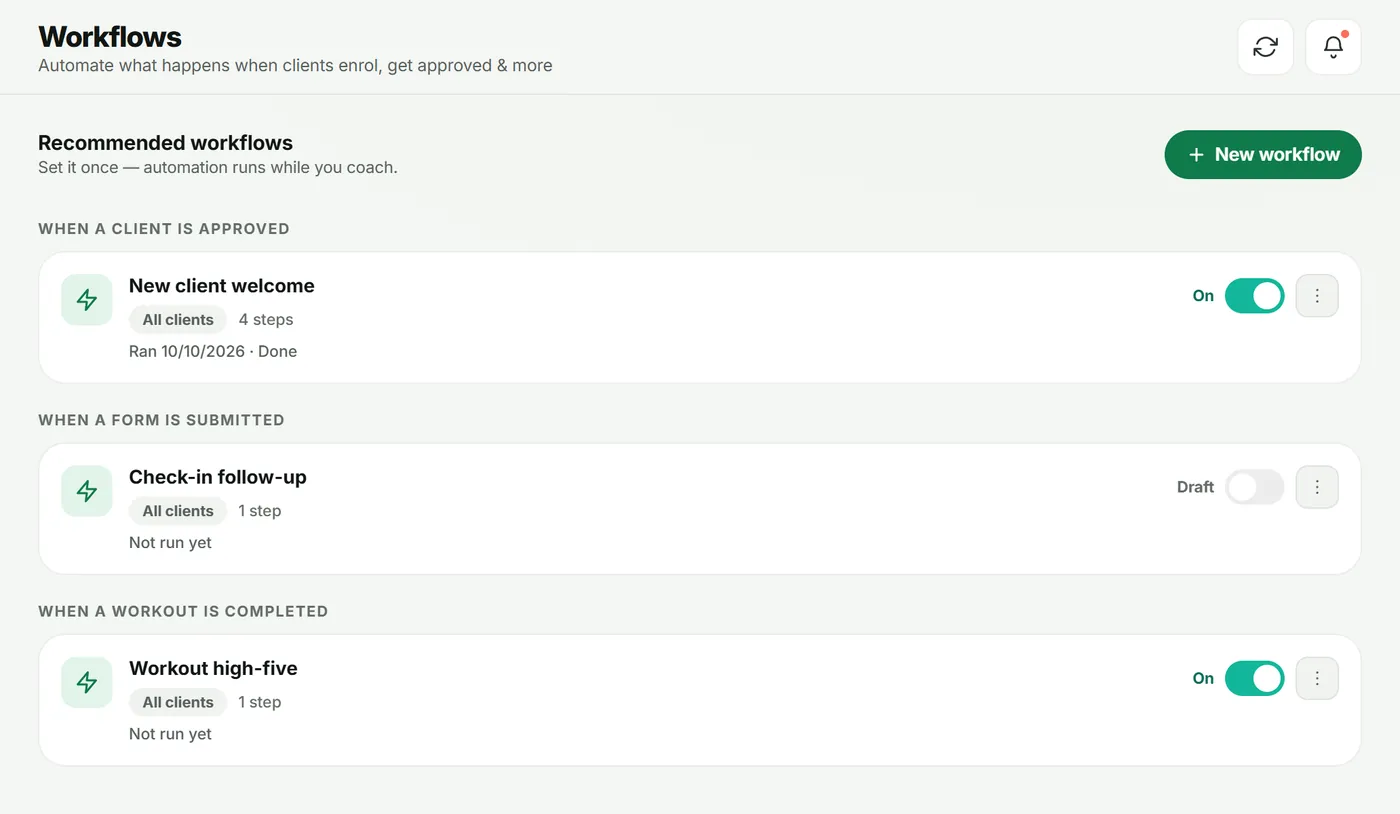
Your workflows are grouped by trigger, each with an On/Off switch.
2. Set the trigger and scope
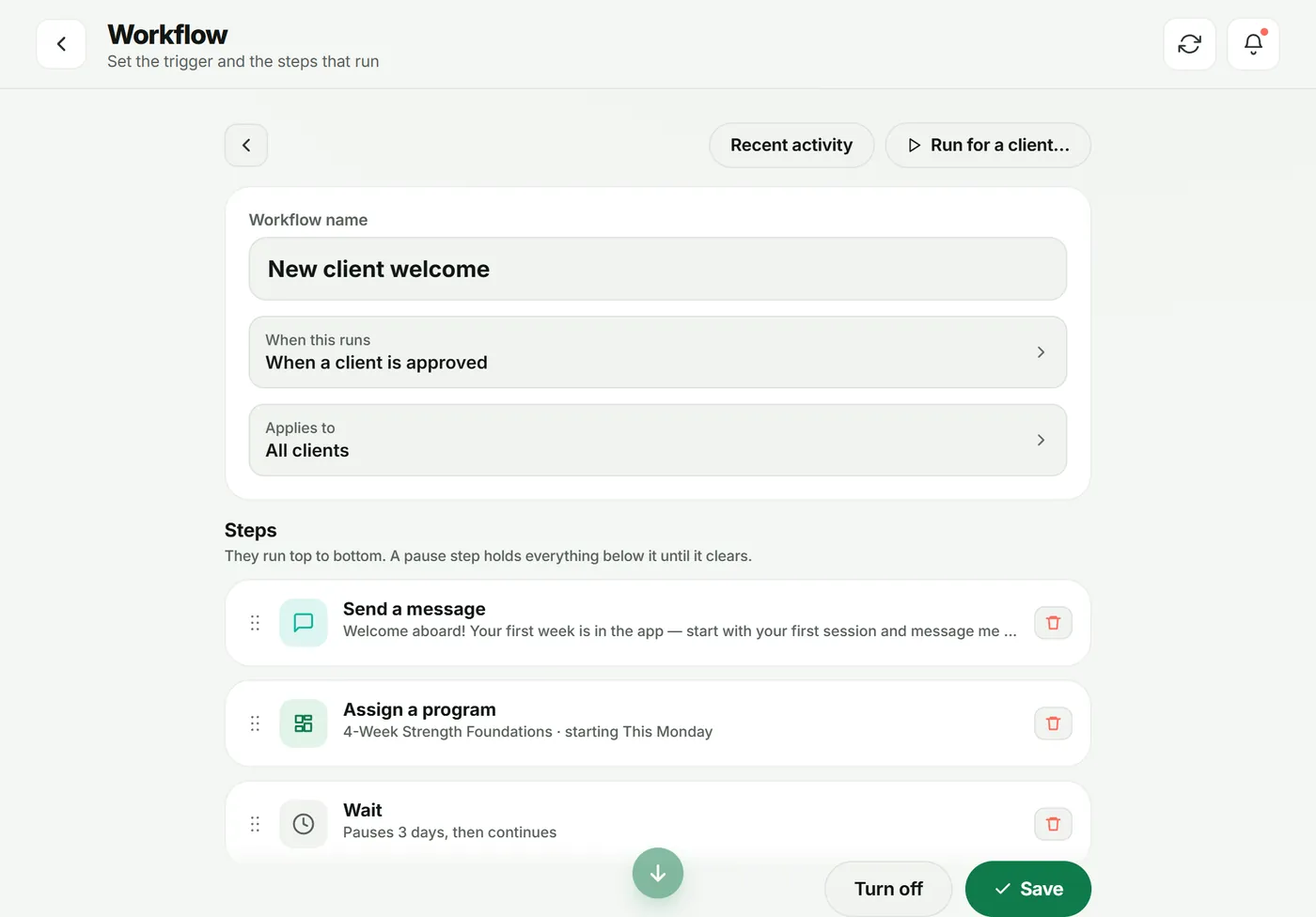
In the editor:
- Workflow name — something you will recognize.
- When this runs — tap Change trigger (for example “When a client is approved”).
- Applies to — which clients it runs for (tap Change scope).
3. Add steps
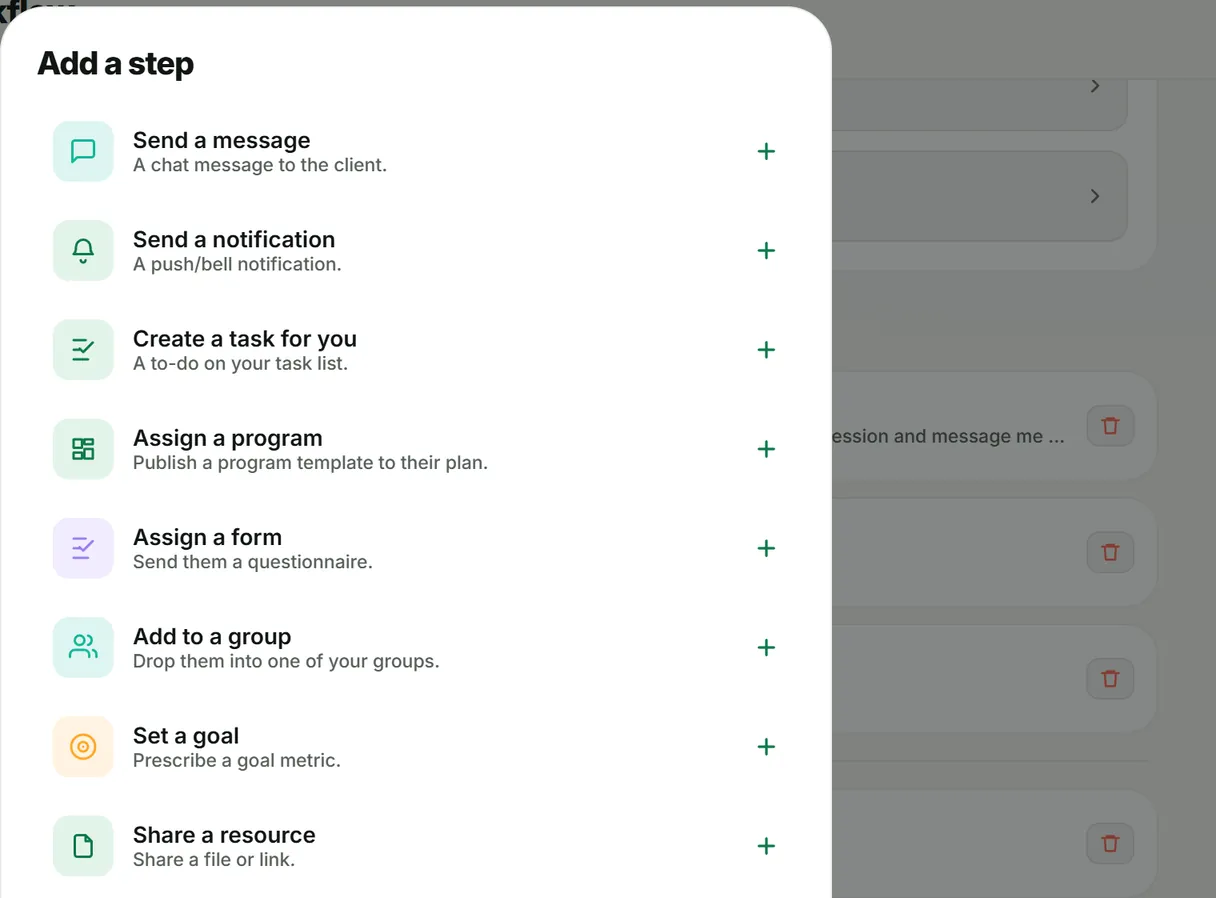
Tap Add a step and pick from the list. Steps run top to bottom:
- Send a message — a chat message to the client.
- Send a notification, Create a task for you.
- Assign a program, Assign a form, Add to a group, Set a goal, Share a resource.
Drag a step by its handle to reorder it. A step marked Needs setup still needs a choice — for example which program to assign.
4. Turn it on
Tap Save, then switch the workflow on. Off keeps it as a draft — it won’t run. Open Recent activity to see each run and where it is.
Troubleshooting
- A step shows “Not for this trigger”. That step doesn’t make sense for the trigger you picked — for example assigning a program before a client is approved.
- Nothing happened. Check the workflow is switched on and that the client matches Applies to.
Frequently asked questions
What can start a workflow?
When a client enrolls, when you accept a request, when a client is approved, when a client is deactivated, when a form is submitted, when a workout is completed, on a schedule — or manually, with “Run for a client…”.
What happens if a step fails?
The run stops at that step and shows in Recent activity, where you can retry it.
Try it in your own workspace
Start your free trial