

Build a 4-week program and assign it
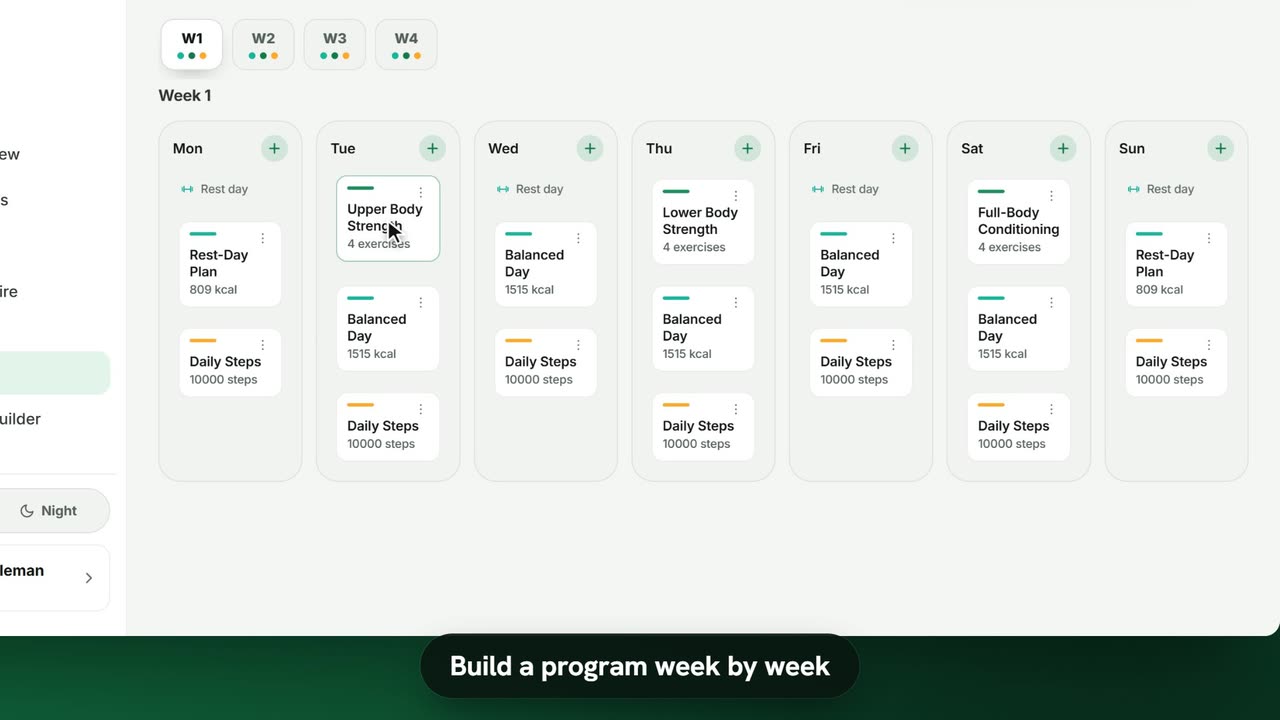
Sample data. The coach and clients shown are fictional.
Who can use it
- Available on every plan, including Free.
- Your 7-day free trial includes every feature, for up to 3 clients.
- The Free plan covers up to 3 clients. Pro, Max and Ultra add the premium features and raise the client limit. Compare plans.
A program is a multi-week plan: each day can hold a workout, a meal plan and habits. You author it once, then assign it to as many clients as you like.
1. Create the program
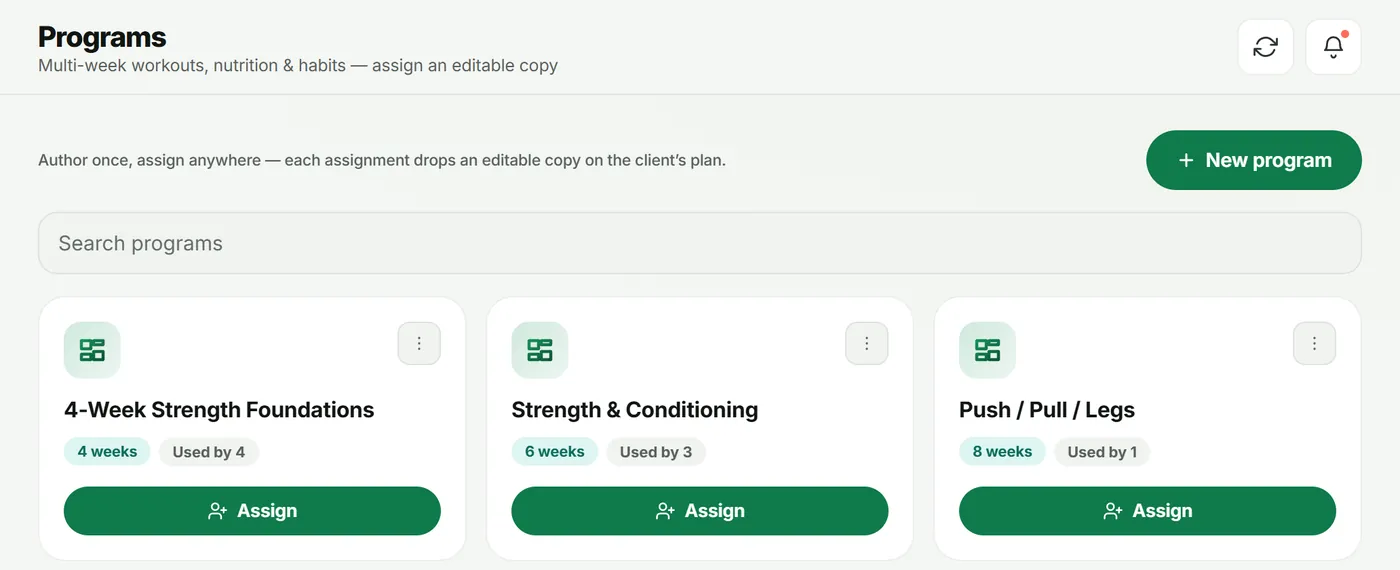
- Open Program Templates in the sidebar.
- Tap New program.
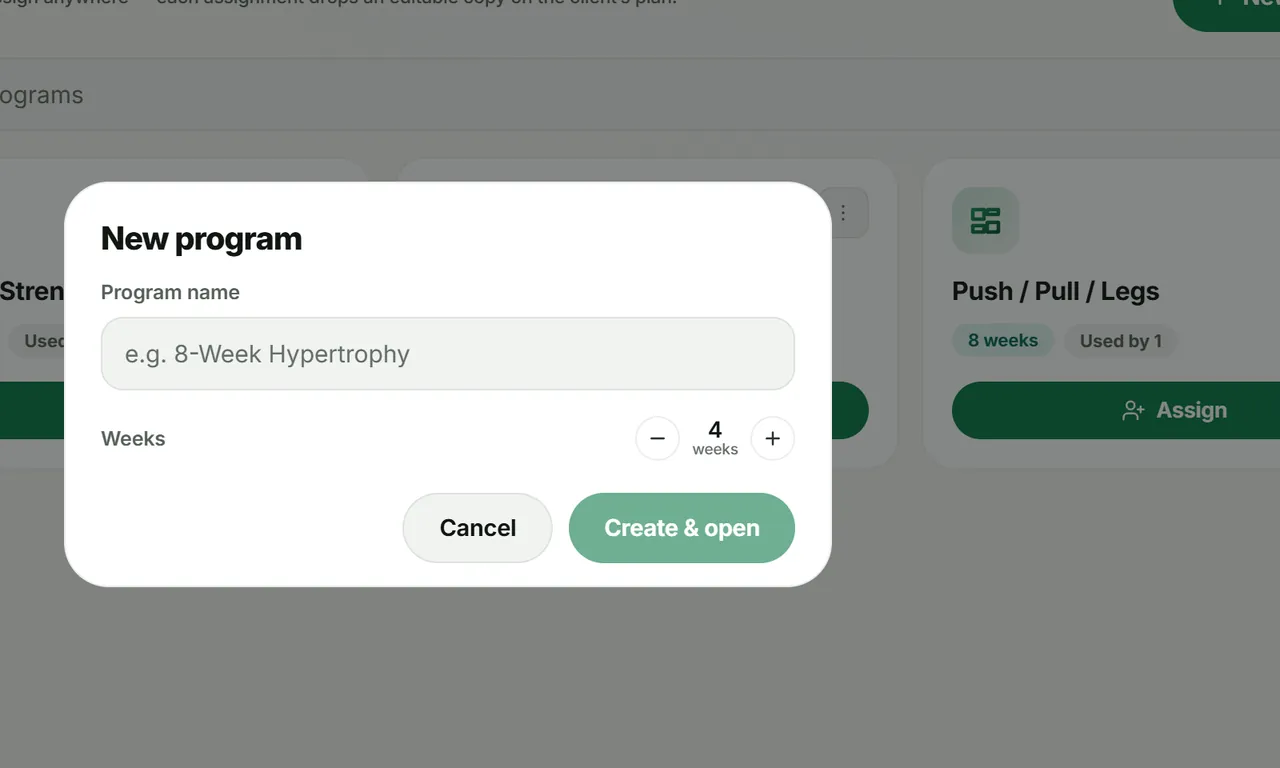
- Enter a Program name (for example “4-Week Strength Foundations”) and set Weeks with the – and + buttons.
- Tap Create & open.
2. Fill in week 1
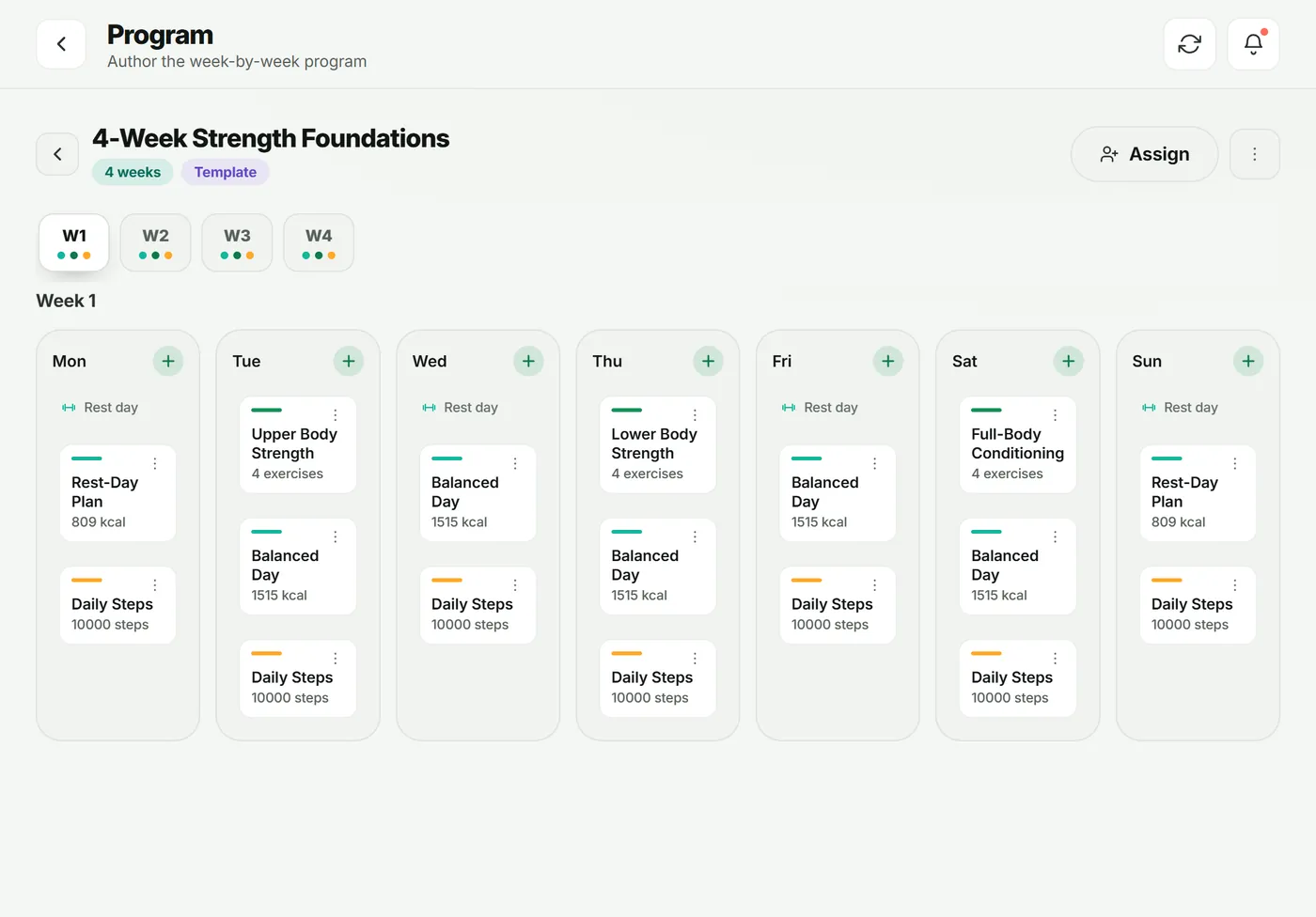
The editor shows one week at a time (W1, W2…), with a column for each day.
- Tap + on a day to add a workout, a meal plan or a habit from your library — or create a new one on the spot.
- Leave a day empty and it shows as Rest day.
- Use ⋮ on an item to edit, move or remove it.
Tip: build your workouts, meals and habits first in the Builder (see the workouts, nutrition and habits tutorials) so they are ready to drop in.
3. Copy weeks instead of rebuilding them
Open the Program menu (⋮ at the top right) and choose Copy week to… → All other weeks, then tweak the later weeks for progression. You can also Copy this day to… other days or weeks.
4. Assign it
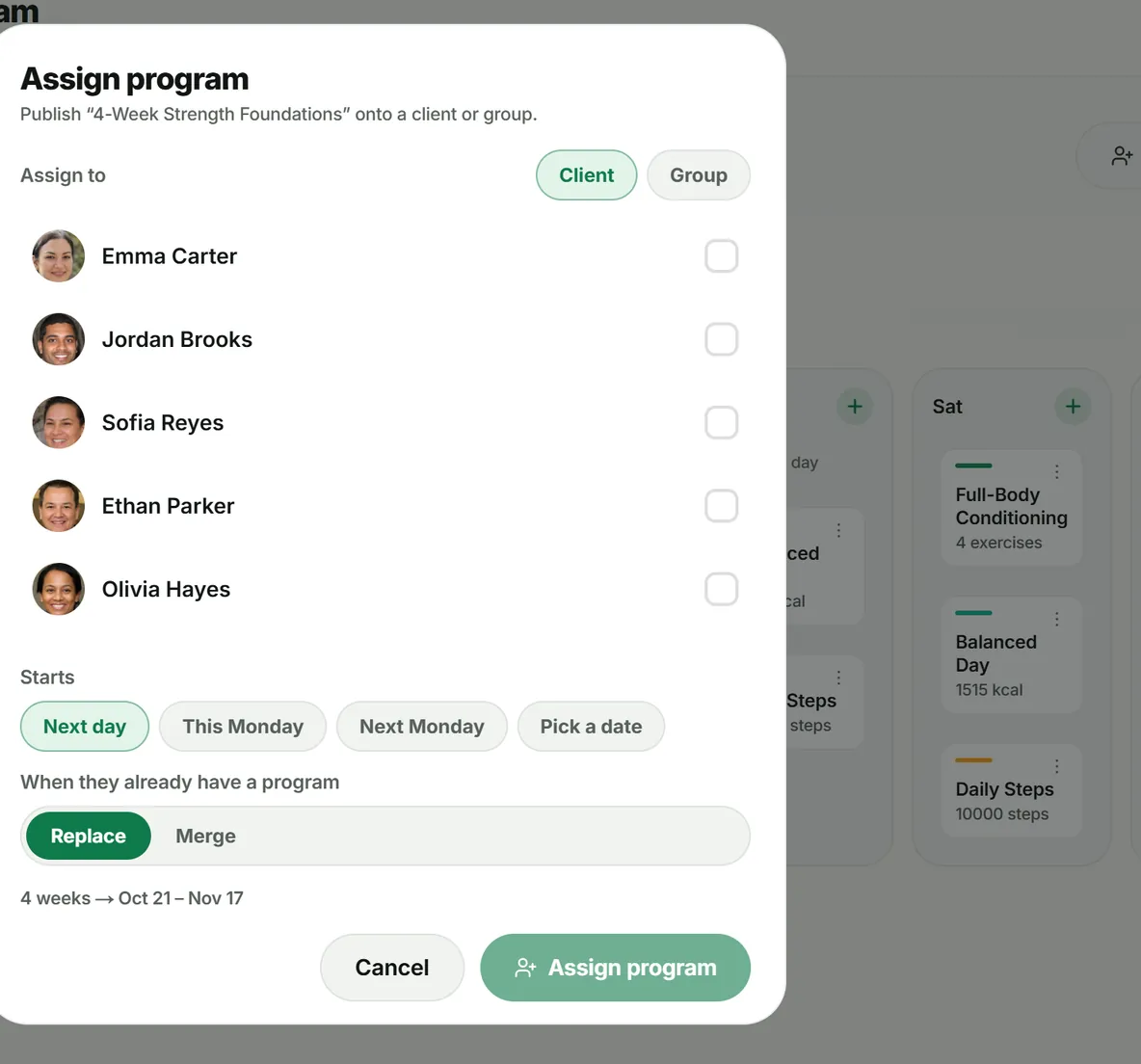
- Tap Assign (on the program card or in the editor).
- Under Assign to, pick Client or Group, then tick who gets it.
- Choose when it Starts: Next day, This Monday, Next Monday or Pick a date.
- Under When they already have a program, choose Replace or Merge.
- Tap Assign program.
The client sees the plan in their app straight away (once you have activated them).
Troubleshooting
- The client sees nothing. They are not activated yet — see Add and manage your clients.
- The first week looks short. The start date fell mid-week; weeks always run Monday to Sunday.
- “Assigning to groups needs a paid plan”. Groups are a Pro feature. Assign to each client instead, or upgrade.
Frequently asked questions
If I edit a program, do my clients’ plans change?
No. Each assignment drops an editable copy on the client’s plan, so you can tailor one client without touching anyone else. Re-assign the program to push changes out.
What does Replace vs Merge do?
Replace swaps the client’s current program for this one from the start date. Merge adds this program on top of what they already have.
Can a program start mid-week?
Yes. Pick “Next day” or “Pick a date”. Weeks stay Monday-aligned, so a mid-week start simply shortens week 1.
Can I assign a program to a group?
Yes — choose Group in the Assign program sheet. Groups are available on Pro and above.
Try it in your own workspace
Start your free trial